
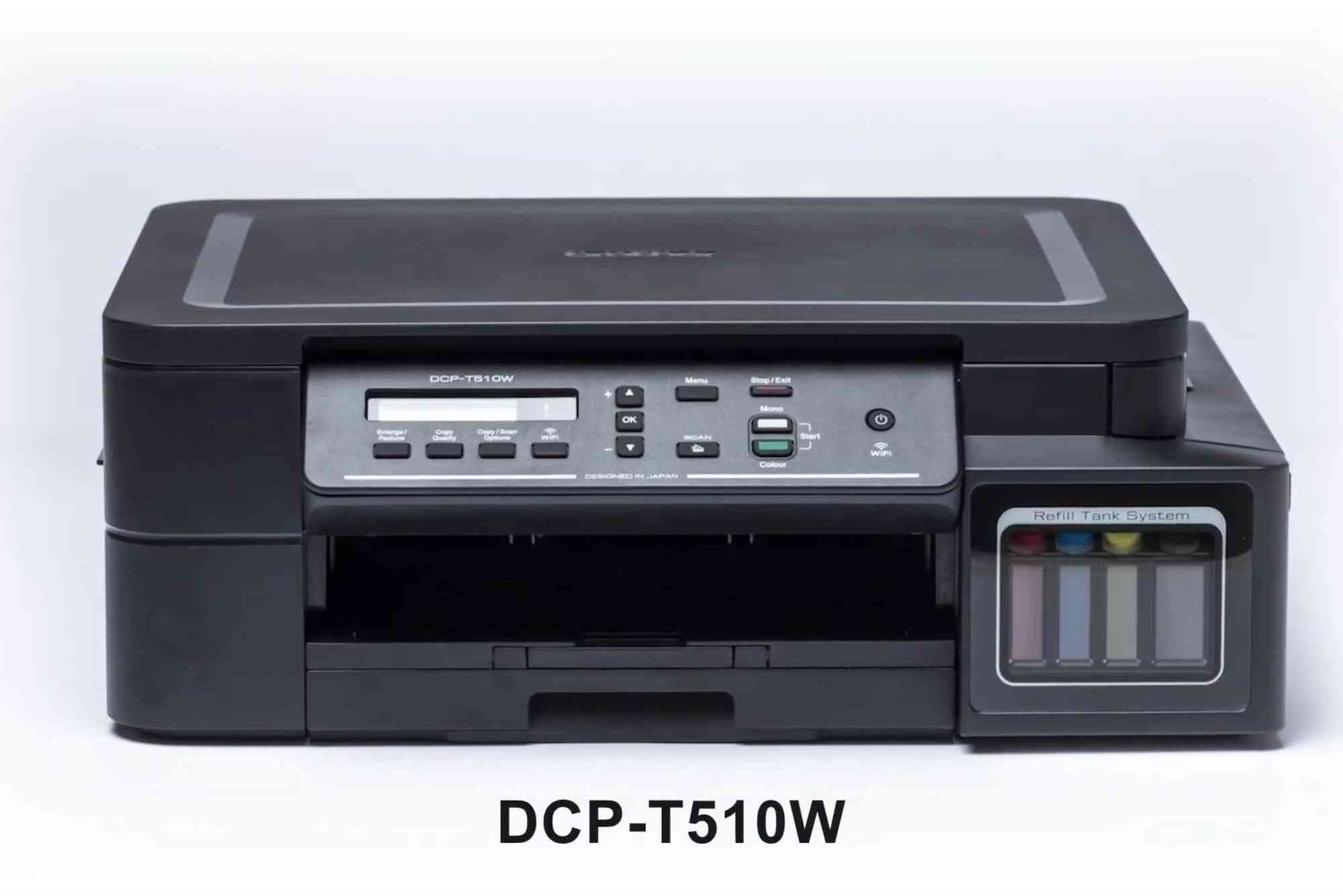
Brother DCP T510W Software Installation and Usage Guide
If you own a Brother DCP T510W printer, you know how valuable it is for both home and office use. This all-in-one printer offers printing, scanning, and copying functions with wireless connectivity, making it a versatile tool. However, getting the most out of your Brother DCP T510W requires the proper installation and understanding of its software. Whether you’re setting up your printer for the first time or reinstalling the software, this guide will walk you through the entire process with easy-to-follow instructions.
In this comprehensive Brother DCP T510W software guide, you will learn how to download, install, and use the software effectively. We will also explore key features and provide troubleshooting tips to help you avoid common issues. By the end, you’ll be confident in managing your printer software to enjoy seamless printing and scanning.
Understanding Brother DCP T510W Software
Before diving into the installation process, it’s important to know what the Brother DCP T510W software includes. The software package typically consists of:
- Printer drivers that allow your computer to communicate with the printer.
- Scanning utility software to manage scans.
- Additional tools for maintenance, updates, and troubleshooting.
This software ensures your printer runs smoothly and supports features like wireless printing, duplex printing, and scan-to-email or scan-to-file options. Installing the right software version for your operating system is crucial to avoid compatibility problems.
How to Download Brother DCP T510W Software
The safest and most reliable place to download your Brother printer software is the official Brother website. Third-party downloads may contain outdated versions or malware.
- Visit Brother’s Official Support Site: Open your web browser and go to brother-usa.com or your regional Brother website.
- Locate the Support Section: Search for “DCP T510W” in the search bar or browse through the printer models.
- Select Your Operating System: The website will typically detect your operating system automatically, but you can also manually select Windows, macOS, or Linux.
- Download the Full Driver & Software Package: This package includes drivers and utilities in one installer for simplicity.
By following these steps, you ensure that you have the most recent and compatible software version.

Brother DCP T510W Software Installation
Once the software package is downloaded, follow these steps to install it properly.
Prepare Your Printer and Computer
Ensure your printer is plugged in, powered on, and connected to your wireless network if you plan to use wireless printing. Also, keep your computer ready with the downloaded software file.
Run the Installation File
Locate the downloaded file, usually in your “Downloads” folder, and double-click it to start the installer. You may need to grant permission for the installation to proceed.
Follow the On-Screen Instructions
The installer will guide you through multiple steps. You will be asked to agree to the license terms and select installation preferences. Choose the “Full Driver & Software Package” option for complete functionality.
Connect the Printer
The installer will prompt you to connect your printer either via USB or Wi-Fi. For wireless setup:
- Select the wireless network.
- Enter the Wi-Fi password.
- The installer will detect and connect the printer to your network.
If you prefer USB, connect the cable as directed.
Complete the Installation
Once the printer connection is established, the installer will finalize the setup by installing drivers and utilities. This process may take a few minutes.
Test Your Printer
After installation, print a test page or scan a document to confirm everything is working.
Using Brother DCP T510W Software Efficiently
Now that your software is installed, let’s explore how to make the most of it.
Printing Documents and Photos
Using the installed Brother printer driver, you can print from any application that supports printing. The driver allows you to select paper size, print quality, color or black and white, and duplex printing options. Wireless printing means you don’t have to stay near the printer to send jobs.
Scanning with Brother ControlCenter
Brother’s ControlCenter software simplifies scanning. It offers easy options to scan directly to your computer, email, or cloud services. You can scan in different formats like PDF or JPEG and adjust settings like resolution and color mode.
Managing Printer Settings
Through the Brother software interface, you can:
- Check ink or toner levels.
- Run cleaning cycles.
- Update firmware.
- Access troubleshooting tools.
These features help maintain your printer’s health and performance over time.
Troubleshooting Common Software Issues
Even with smooth installation, you might encounter some problems. Here are common issues and their solutions:
Printer Not Detected During Installation
Make sure your printer is powered on and connected to the same network as your computer. Temporarily disable firewalls or antivirus software that may block connections.
Wireless Setup Fails
Check your Wi-Fi password and network status. Restart your router if necessary. Try using a USB connection first, then switch to wireless later through the software.
Print Jobs Stuck in Queue
Clear the print queue from your operating system’s printer settings and restart the spooler service on Windows if needed.
Scanning Not Working
Ensure the scanning utility is installed and your printer is recognized in the software. Restart both devices and try scanning again.
Tips for Optimal Performance
- Always keep your Brother DCP T510W software updated by checking for updates in the software or on the Brother website.
- Use original Brother ink cartridges to avoid print quality issues.
- Perform routine printer maintenance via software tools.
- Regularly reboot your printer and computer to prevent connectivity glitches.
Get the Best from Your Brother DCP T510W
Installing and using the Brother DCP T510W software correctly unlocks the full potential of your printer. With wireless convenience, easy scanning, and efficient maintenance tools, your printing experience becomes smoother and more productive. Whether you are a student, professional, or home user, this guide aims to help you set up and operate your printer hassle-free.
If you haven’t installed your Brother DCP T510W software yet, follow the steps above to get started today. Don’t forget to keep your software updated and explore all the features available to enhance your workflow. Need more help or want to troubleshoot specific issues? Check Brother’s support resources or contact their customer service. Ready to upgrade your printing experience? Download the Brother DCP T510W software now and enjoy seamless printing and scanning like a pro!
FAQs
Q: Where can I download the Brother DCP T510W software?
A: The safest source is the official Brother website under the support section for your model.
Q: Is Brother DCP T510W software compatible with Windows 11?
A: Yes, Brother provides updated drivers compatible with Windows 11 on their official site.
Q: How do I connect my Brother DCP T510W printer to Wi-Fi during software installation?
A: During the installation, select wireless setup, choose your network, and enter the password when prompted.
Q: Why is my Brother printer not detected by the software?
A: Common reasons include connectivity issues, firewall blocking, or the printer not being on the same network as your computer.
Q: Can I scan documents without installing the full Brother software?
A: You can use basic drivers or built-in OS tools, but Brother’s ControlCenter software provides enhanced scanning features.
Q: How do I update Brother DCP T510W software?
A: Use the software’s update function or download the latest version from Brother’s website.