
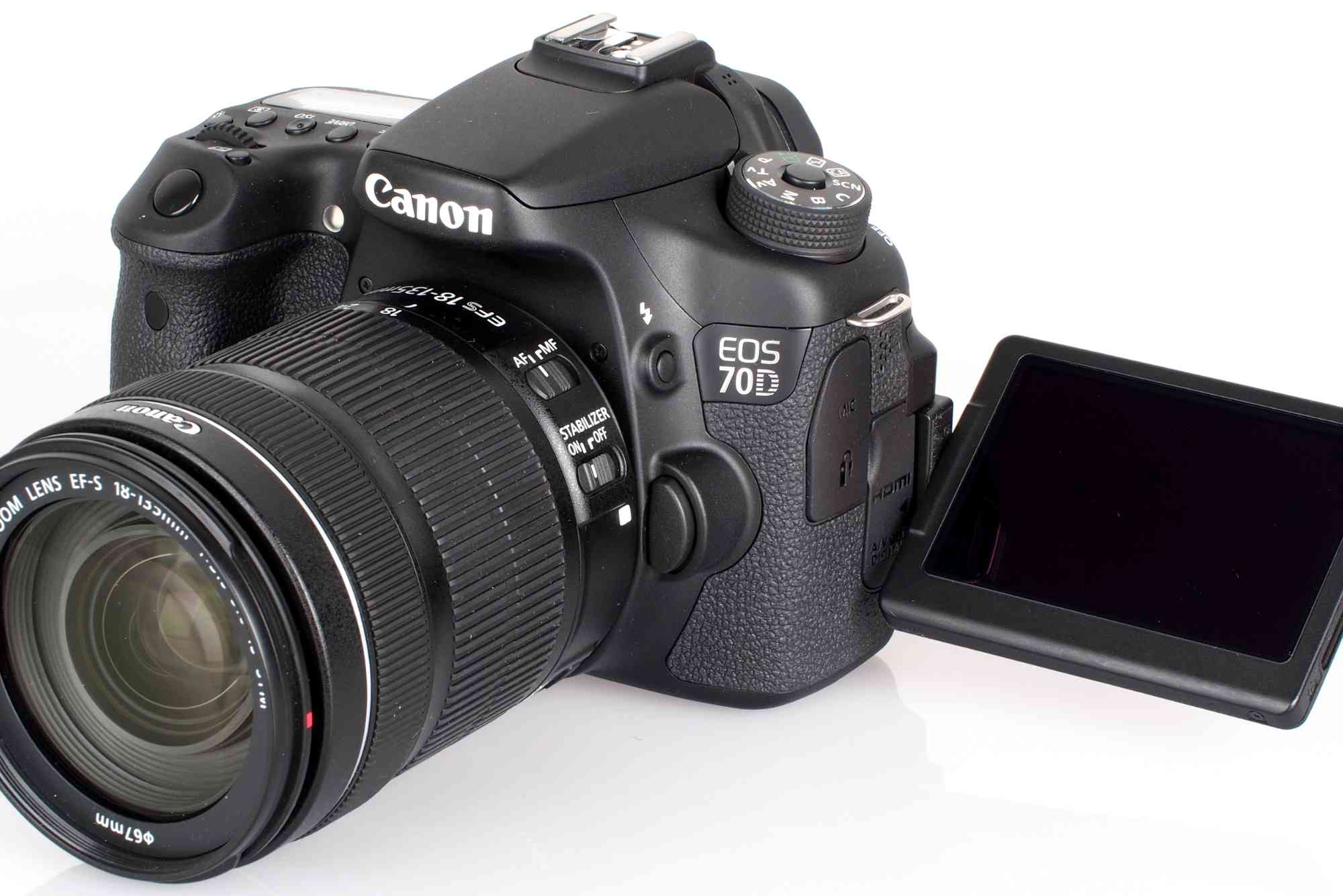
Canon 70D Software for Windows 10: A Complete Setup Guide
If you own a Canon 70D and use Windows 10, you already know how powerful your camera is. But unlocking its full potential often depends on having the right software installed on your computer. The Canon 70D software for Windows 10 is essential for managing your photos, remotely controlling the camera, updating firmware, and even editing your work professionally. This comprehensive guide will walk you through the entire setup process, ensuring your Canon 70D integrates flawlessly with your Windows 10 system.
Why You Need Canon 70D Software for Windows 10
Before diving into the installation, it’s important to understand why this software is necessary. The Canon 70D doesn’t just capture stunning images—it offers advanced connectivity features that require dedicated software to operate smoothly on your PC. Without it, transferring files, remote shooting, and firmware updates become cumbersome or impossible.
Windows 10, with its unique architecture, needs compatible drivers and applications to recognize the camera and make full use of its capabilities. Canon provides official software that bridges this gap, making your workflow more efficient.
Getting Started: What You Need Before Installation
Check Your Windows 10 Version
Your system must run a supported version of Windows 10. Usually, the Canon 70D software is compatible with both 32-bit and 64-bit versions, but it’s wise to verify your system specifications. You can find this information in your Windows Settings under “About Your PC.”
USB Cable and Card Reader Ready
While software handles communication, you’ll need a reliable USB cable to connect your Canon 70D directly or a card reader to transfer files from the SD card. A high-quality USB 2.0 or 3.0 cable is recommended for stable connection speeds.
Internet Connection for Downloading
Downloading the latest Canon 70D software for Windows 10 requires a stable internet connection. Canon frequently updates their software, so downloading the newest version ensures compatibility and enhanced features.

How to Download Canon 70D Software for Windows 10
Visit Canon’s Official Website
The safest place to download Canon 70D software is Canon’s official support site. Avoid third-party sources to prevent potential malware or outdated versions.
Navigate to the Support Section
Once on Canon’s site, find the support or downloads section. You can search by camera model—type “Canon 70D” to locate the specific software package for your device.
Choose Your Operating System
Select “Windows 10” from the operating system list to ensure you get the correct version. Some older software versions may not support Windows 10 natively.
Select the Required Software
Canon offers several useful tools for the 70D:
- EOS Utility: For remote shooting, image transfer, and camera control.
- Digital Photo Professional (DPP): For RAW image editing and processing.
- Picture Style Editor: For customizing color profiles.
- Firmware Updater: To keep your camera’s internal software up to date.
Download the latest versions of these based on your needs.
Installing Canon 70D Software on Windows 10
Run the Installer as Administrator
After downloading, locate the installer file in your Downloads folder. Right-click and select “Run as administrator” to avoid permission issues during installation.
Follow the On-Screen Prompts
The installation wizard will guide you through the process. Choose your preferred installation location or leave it at the default path. Accept the license agreement to continue.
Connect Your Canon 70D
Once installation completes, connect your camera via USB. Switch it on and set it to the proper mode (usually “PC connection” or “Remote control”). Windows 10 should recognize the device automatically and install any necessary drivers.
Launch EOS Utility
Open EOS Utility to confirm your camera is connected. You can test remote shooting or file transfer at this point.
Troubleshooting Common Installation Issues
Camera Not Recognized by Windows 10
If your Canon 70D isn’t detected, try these fixes:
- Reconnect the USB cable and try a different port.
- Restart your PC and camera.
- Update your Windows 10 drivers manually through Device Manager.
- Disable USB selective suspend settings in Power Options.
Software Installation Fails or Freezes
Ensure you have enough disk space and administrative rights. Temporarily disable antivirus software during installation if conflicts arise.
EOS Utility Won’t Launch
Make sure all software dependencies are installed correctly. Sometimes reinstalling EOS Utility resolves launching problems.
Using Canon 70D Software on Windows 10
Transfer and Manage Your Photos
With EOS Utility, transferring photos from your Canon 70D to Windows 10 is seamless. You can set the software to automatically download images as soon as you connect the camera.
Remote Shooting
EOS Utility allows you to control your Canon 70D remotely from your PC. This is useful for studio photography, long exposures, or wildlife shooting where touching the camera isn’t ideal.
Editing with Digital Photo Professional
Canon’s DPP software offers powerful editing tools specially optimized for Canon RAW files. It supports batch processing and fine-tuning colors to bring out the best in your photos.
Firmware Updates
Keeping your Canon 70D’s firmware updated is crucial. Firmware updates can fix bugs, improve performance, or add new features. Use the Firmware Updater tool to check and install updates effortlessly.
Enhancing Your Workflow with Canon 70D Software
Integrating Canon 70D software with Windows 10 not only simplifies file management but also unlocks creative control. By mastering these tools, photographers can speed up editing, maintain organized photo libraries, and even perform complex shoots with remote control capabilities.
Additionally, the software’s ability to work smoothly with Windows 10’s native file system means you won’t experience lag or crashes during critical work sessions. The seamless connection between your camera and PC also opens doors to faster client approvals, real-time editing previews, and easy backups.
Get the Most from Your Canon 70D on Windows 10
Setting up the Canon 70D software for Windows 10 might seem technical at first, but following this guide makes the process straightforward. The right software ensures you can efficiently transfer photos, remotely control your camera, and keep your device updated.
Don’t miss out on the full benefits your Canon 70D can offer when paired with Windows 10. Download the latest Canon software today, install it properly, and elevate your photography workflow. Ready to start capturing and editing with ease? Visit Canon’s official website now, download your software, and unlock the true potential of your Canon 70D.
FAQs
Q: Is Canon 70D software compatible with Windows 10 64-bit?
A: Yes, Canon provides compatible versions for both 32-bit and 64-bit Windows 10 systems.
Q: Can I use EOS Utility wirelessly with Canon 70D on Windows 10?
A: While EOS Utility supports USB connections, wireless control may require additional hardware or apps.
Q: How do I update my Canon 70D firmware on Windows 10?
A: Use the official Firmware Updater tool available on Canon’s support page and follow the instructions carefully.
Q: What if Windows 10 does not recognize my Canon 70D?
A: Try different USB ports, update drivers manually, or reinstall the Canon software suite.
Q: Can I edit RAW images from Canon 70D on Windows 10?
A: Absolutely! Canon’s Digital Photo Professional software is optimized for RAW files and works perfectly on Windows 10.