How to Use Brother QL 810W Software for Label Printing
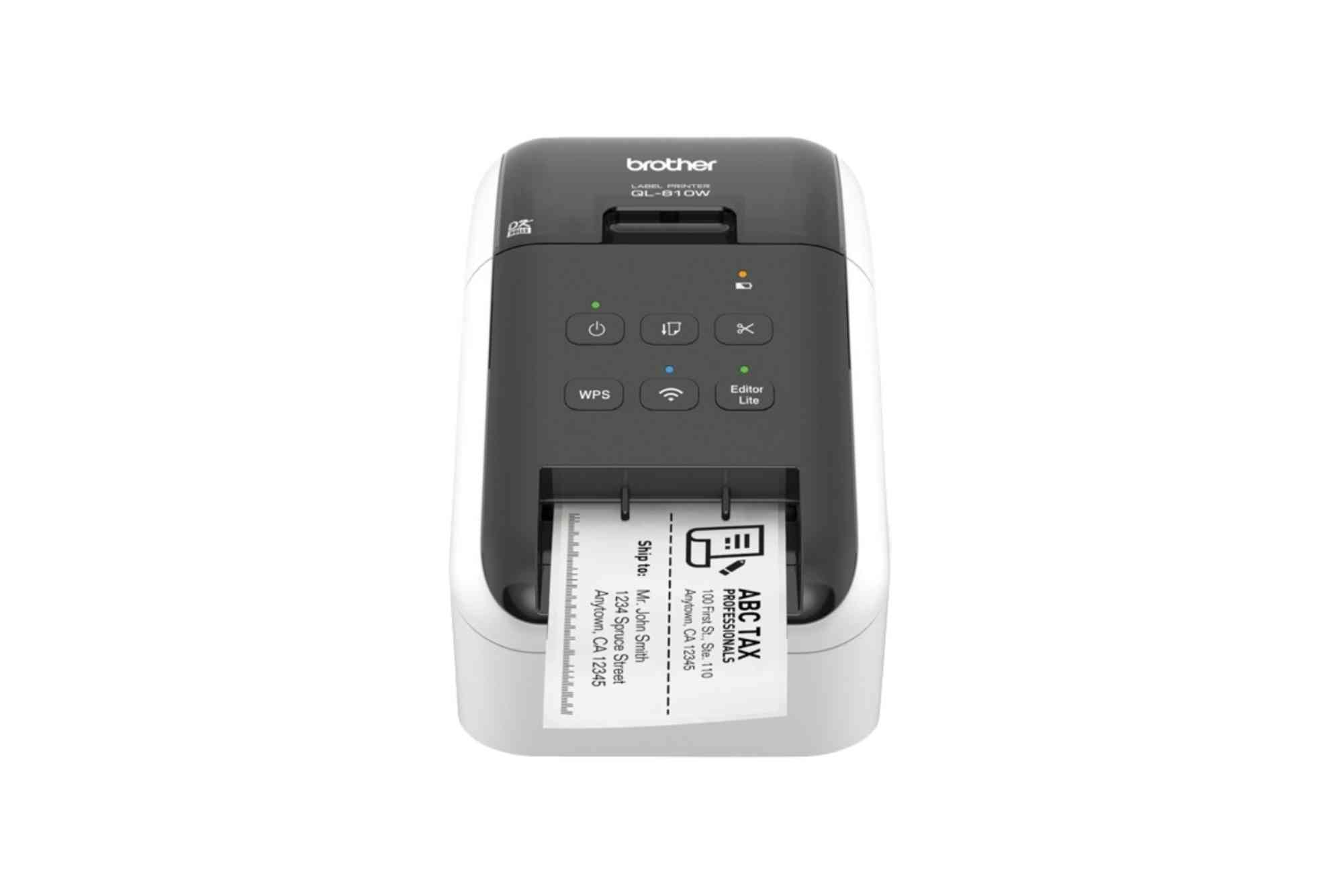
Label printing has come a long way with the evolution of smart devices, and the Brother QL 810W label printer is one of the most reliable tools in this space. Whether you’re organizing home files, managing office inventory, or printing shipping labels, the Brother QL 810W software plays a crucial role in delivering fast and high-quality results.
Brother’s intuitive software suite simplifies the label design and printing process. If you’ve just bought this printer or plan to optimize your current workflow, mastering the Brother QL 810W software is key. From installation to label customization, we’ll guide you step by step.
Understanding the Brother QL 810W Software
The Brother QL 810W is a high-speed label printer that supports both wired and wireless connections. To unlock its full capabilities, you’ll need to use the compatible software provided by Brother. This includes the P-touch Editor, Printer Driver, and optional mobile apps. The software enables you to design custom labels, adjust settings, and manage print tasks directly from your computer or smartphone.
Brother’s P-touch Editor software is especially powerful. It supports graphics, barcodes, databases, and a variety of font and layout options. Additionally, the Brother iPrint&Label app lets you print from your mobile devices. These software tools ensure you get the best results from your QL 810W label printer.
Installing the Brother QL 810W Software
To begin using your printer, you must first install the appropriate software. Here’s how to do it smoothly:
Downloading from the Brother Website
Visit the official Brother support page. Type in your model, “Brother QL 810W”, and select your operating system. Download the “Full Software Package” which includes the printer driver, P-touch Editor, and other utilities.
Installation on Windows or macOS
Once the file is downloaded, run the installer. Follow the on-screen instructions to complete installation. Make sure your printer is powered on and connected to your PC via USB or Wi-Fi during setup. On macOS, the installation may require security permissions, so keep an eye out for prompts.
Connecting the Printer
You can connect your Brother QL 810W via USB, Wi-Fi, or Wi-Fi Direct. For wireless setup, use the Printer Setting Tool included in the software package. This utility allows you to configure network settings, SSID, and password easily.
Using P-touch Editor for Label Design
Once everything is set up, P-touch Editor becomes your primary tool for designing and printing labels. It offers three modes: Snap, Express, and Professional. Each mode serves a different user level.
Snap Mode
Best for quick prints, Snap Mode lets you drag and drop text or images into a pre-set label format. It’s great for users who want speed and simplicity.
Express Mode
A bit more flexible, Express Mode allows for basic design edits such as resizing text, adding frames, and inserting logos.
Professional Mode
This is where the real power of the Brother QL 810W software shines. You can design complex labels using multiple text boxes, barcode generators, database imports, date/time stamps, and more. Ideal for business users needing customized formats.
When using Professional Mode, always select the correct label size from the drop-down menu. This ensures your layout fits perfectly on the label roll you’re using.
Creating Your First Label
Start by launching P-touch Editor in the mode that suits your skill level. Choose the label size that matches your label roll — for example, 62mm continuous or die-cut labels. Begin adding content: text, images, logos, barcodes, or borders. To insert text, simply click the “A” icon and type in your desired content. You can customize fonts, sizes, and alignment using the toolbar. To insert a logo, use the “Insert Image” feature. To add barcodes, click the barcode tool and select your format (like QR or Code39).
If you want dynamic content, use the “Date/Time” and “Serial Number” tools. These features are helpful for labeling items with expiry dates, production times, or sequential inventory numbers. Once your label is designed, click “Print”. Make sure the printer is powered on, the correct label roll is loaded, and the printer is selected in your print settings.
Managing Print Settings
The Brother QL 810W software gives you fine control over print quality and speed. Before hitting “Print”, click on “Printer Settings” to adjust parameters such as:
- Print density (for bolder text)
- Print speed
- Auto-cut options (to separate each label)
- Mirror printing (useful for transparent labels)
Choosing the right settings ensures your labels are clear, durable, and correctly aligned.
Printing from Mobile Devices
For users on the go, Brother offers the iPrint&Label app, available for both Android and iOS. After installing the app, make sure your smartphone is connected to the same Wi-Fi network as your Brother QL 810W printer.
Open the app, select your printer, and choose a label template. You can design and print basic labels right from your mobile device. This is particularly useful for warehouse labeling, event management, or mobile retail operations.
You can also use AirPrint (on iOS devices) or Google Cloud Print to print documents or simple labels directly, although functionality is more limited compared to P-touch Editor.
Troubleshooting Common Issues
Using Brother QL 810W software is generally smooth, but you may encounter some occasional glitches. Here’s how to fix the most common issues:
Printer Not Found
If your computer or mobile app can’t detect the printer, ensure it’s powered on, connected to the same network, and the correct driver is installed. Restart both the printer and computer if needed.
Labels Not Printing Correctly
Check that you’ve selected the correct label size in the software. If labels are misaligned or cut incorrectly, recalibrate by opening the front cover, removing and reinserting the roll, then closing the cover firmly.
Software Freezing or Crashing
Ensure you’re using the latest software version. Outdated versions of P-touch Editor or the printer driver may crash unexpectedly. Reinstall the software if needed.
Wireless Connection Drops
If your printer frequently loses Wi-Fi, assign it a static IP address via the Printer Setting Tool. This minimizes network instability.
Advanced Tips for Power Users
If you’re a frequent label printer user, these tips can make your experience even better:
- Use Templates: Save your custom labels as templates for reuse. This saves time and ensures consistency.
- Link to Excel: Import a spreadsheet into P-touch Editor to batch-print labels using variable data.
- Label Folders or Bins: Use QR codes that link to digital inventory sheets.
- Customize Auto-Cut: Disable cutting between labels if printing a batch of similar items.
With consistent use, these small optimizations will boost your productivity significantly.
The Brother QL 810W software is a powerful and flexible tool for creating professional-quality labels. Whether you’re labeling files, packaging products, or organizing home supplies, the software gives you the creative freedom to design and print exactly what you need. From initial setup to advanced features like database importing and mobile printing, the software empowers users at every level.
Don’t just settle for basic functionality. Explore everything the Brother QL 810W software offers, and elevate your label printing to a professional standard. Ready to streamline your workflow? Download the Brother QL 810W software today and start printing smarter.
FAQs
How do I connect Brother QL 810W to Wi-Fi?
Use the Printer Setting Tool included in the software. Connect the printer via USB, open the tool, and configure wireless settings such as SSID and password.
Can I print from my phone using Brother QL 810W?
Yes. Install the Brother iPrint&Label app on your smartphone, connect to the same Wi-Fi, and start printing.
Does the software support barcode printing?
Absolutely. P-touch Editor includes a barcode generator supporting formats like QR, Code128, Code39, and more.
Why are my labels printing blank?
Ensure the label roll is properly loaded and not facing the wrong direction. Also, check that your design contains visible content and that the correct label size is selected.
Is Brother QL 810W software free?
Yes. You can download the full software package, including the driver and P-touch Editor, for free from Brother’s official website.