
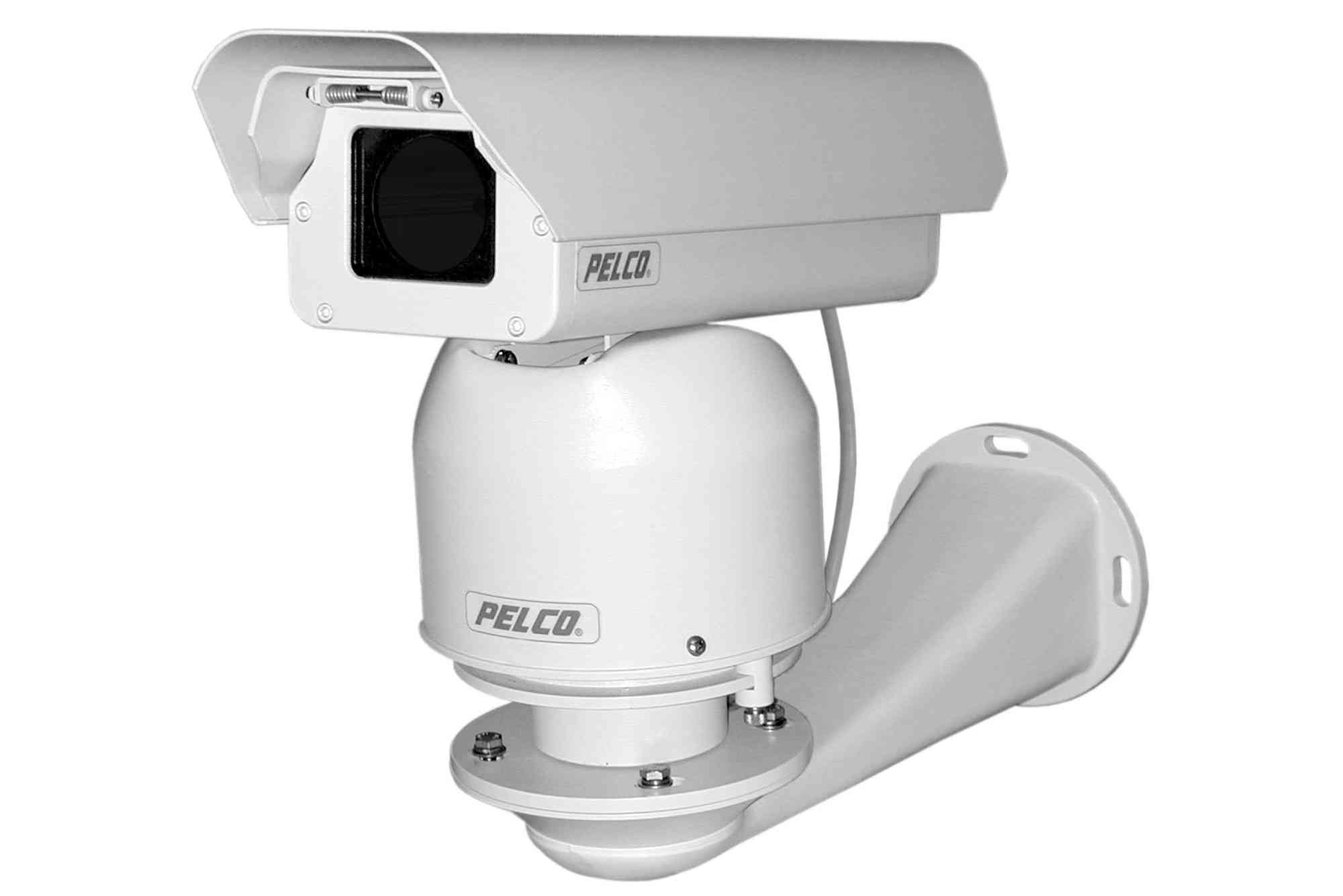
Security is no longer a luxury—it’s a necessity. Businesses across all industries need reliable, scalable surveillance systems. Among the most trusted brands in video security is Pelco, known for high-performance cameras and video management systems. But before you can unlock the full potential of your surveillance setup, you need to correctly configure your Pelco camera license.
In this article, we’ll walk you through everything from what a Pelco license is, to how to set it up, manage it, and troubleshoot common issues. Whether you’re upgrading an existing system or starting fresh, this guide will ensure your business stays secure and compliant.
Why a Pelco Camera License Matters
Before diving into the technical setup, let’s clarify what a Pelco camera license is and why it’s critical.
Pelco’s video surveillance solutions typically require a license to activate and manage IP cameras within their Video Management Software (VMS), like Pelco VideoXpert. These licenses control how many cameras you can operate, and enable advanced features like motion detection, remote viewing, and storage management.
Without the proper license, your surveillance system won’t function fully or legally—especially in regulated industries like retail, finance, and healthcare.
Understanding Pelco Licensing Types
Core Licensing Models
Pelco uses a tiered licensing model based on features and number of devices. Some licenses support basic recording, while others unlock enterprise-level capabilities.
VMS Compatibility
Licensing requirements vary depending on the VMS in use. For example, VideoXpert Professional has a different licensing structure compared to VideoXpert Enterprise. Make sure you choose the right license type for your software and use case.
Preparing for License Installation
Setting up your Pelco camera license requires some groundwork. These are the steps to prepare your system for a smooth installation.
Assess Your Surveillance Needs
Start by determining how many cameras your business needs, current and future. Licensing is issued per device, so count accurately.
Also, assess required features: do you need analytics, remote access, or integration with third-party systems? Advanced features may require an upgraded license.
Choose the Right Hardware and Software
Ensure your cameras and servers are compatible with Pelco software. Review system requirements on Pelco’s official documentation to avoid compatibility issues later.
Register for a Pelco Account
You’ll need a Pelco Partner Portal account to access license files, updates, and technical support. This portal is where you’ll redeem license keys and download activation files.
How to Set Up a Pelco Camera License
Let’s break down the installation and activation process in detail.
Purchase the License
Licenses are typically purchased through authorized Pelco resellers or directly from Pelco. You’ll receive a license activation key or entitlement ID, often via email.
Install the Pelco VMS
Install the VideoXpert VMS (Professional or Enterprise) on your server. During installation, make sure you select the correct version that matches your purchased license.
Launch the License Activation Tool
Pelco provides a License Utility Tool. Open this tool and enter the license key provided by your vendor or Pelco.
You may need to provide system-specific data, such as a hardware fingerprint or MAC address, to generate a unique license file.
Apply the License
Once you’ve downloaded the license file (usually with a .lic or .xml extension), return to the VMS and upload the file through the system settings or administration interface.
After successful application, the system will reflect the number of licensed cameras and enabled features.
Add Cameras to the VMS
With the license active, go to the device management panel and begin adding your Pelco IP cameras. The system will count these against your license limit.
If you exceed the number of allowed devices, new cameras won’t activate until you upgrade the license.
Managing and Renewing Pelco Camera Licenses
Licensing isn’t a set-it-and-forget-it task. You’ll need to manage and occasionally renew licenses as your surveillance needs grow.
Monitoring License Usage
VideoXpert includes license monitoring tools that show real-time license usage and available capacity. Set alerts for when you approach your limit.
Renewing or Expanding Licenses
Need more cameras or advanced features? You can purchase an add-on license and follow the same activation process. The system will recognize the extended capabilities after license reapplication.
Transferring Licenses to New Hardware
If you upgrade servers or relocate, contact Pelco support. They’ll help regenerate a license file tied to your new hardware fingerprint.
Common Troubleshooting Tips
Even with a smooth setup, issues can arise. Here are quick fixes for common licensing problems.
Activation Key Not Accepted
Double-check the format and ensure you’re entering the correct key for your version. Typos and software mismatches are common causes.
Camera Not Recognized
If a camera isn’t being licensed, verify it’s supported and properly connected. Reboot the device and re-scan in the VMS.
System Reports License Expired
Make sure your system clock is correct. If your license has indeed expired, contact Pelco to renew it or acquire a time extension.
Best Practices for License Compliance
Avoid system downtime or legal trouble by following best practices:
- Keep track of expiration dates and renewal cycles.
- Maintain a secure record of license keys and activation files.
- Avoid pirated or unofficial software patches—they may void your license.
Benefits of a Licensed Pelco Surveillance System
Investing in the proper Pelco camera license unlocks critical functionality and long-term value:
- Scalability: Add new cameras without overhauling the system.
- Security: Access updates and patches for improved cybersecurity.
- Support: Get official help from Pelco’s global support team.
- Advanced Features: Enable analytics, multi-site access, and audit logs.
A fully licensed system ensures you’re not just monitoring your business—but doing it intelligently and legally.
Secure Your Business with Pelco Licensing
Your surveillance system is only as strong as its foundation. And at the core of that foundation is the Pelco camera license. Whether you’re overseeing a single retail store or managing a multi-location enterprise, getting your license setup right is the first step toward smarter, safer operations.
Don’t leave security to chance. Ensure your Pelco system is properly licensed and optimized for your business needs.
Ready to get started?
Contact a Pelco partner or visit the Pelco official site to secure your license and take control of your business security today.
FAQs
What is a Pelco camera license?
A Pelco camera license allows you to add and manage IP cameras within Pelco’s VMS platforms like VideoXpert. It activates system features and limits camera capacity based on your purchase.
How do I activate my Pelco license?
Use the License Utility Tool provided by Pelco. Enter your license key, generate a license file, and upload it into your VMS.
Can I transfer my Pelco license to a new server?
Yes. You’ll need to contact Pelco support to regenerate the license file based on your new hardware ID.
What happens if I exceed the licensed number of cameras?
Any additional cameras will remain inactive until you expand your license. The VMS will notify you when you’re approaching the limit.
Where can I buy a Pelco license?
Pelco licenses are available through authorized distributors, resellers, or directly from Pelco. Always purchase from official channels to ensure validity.